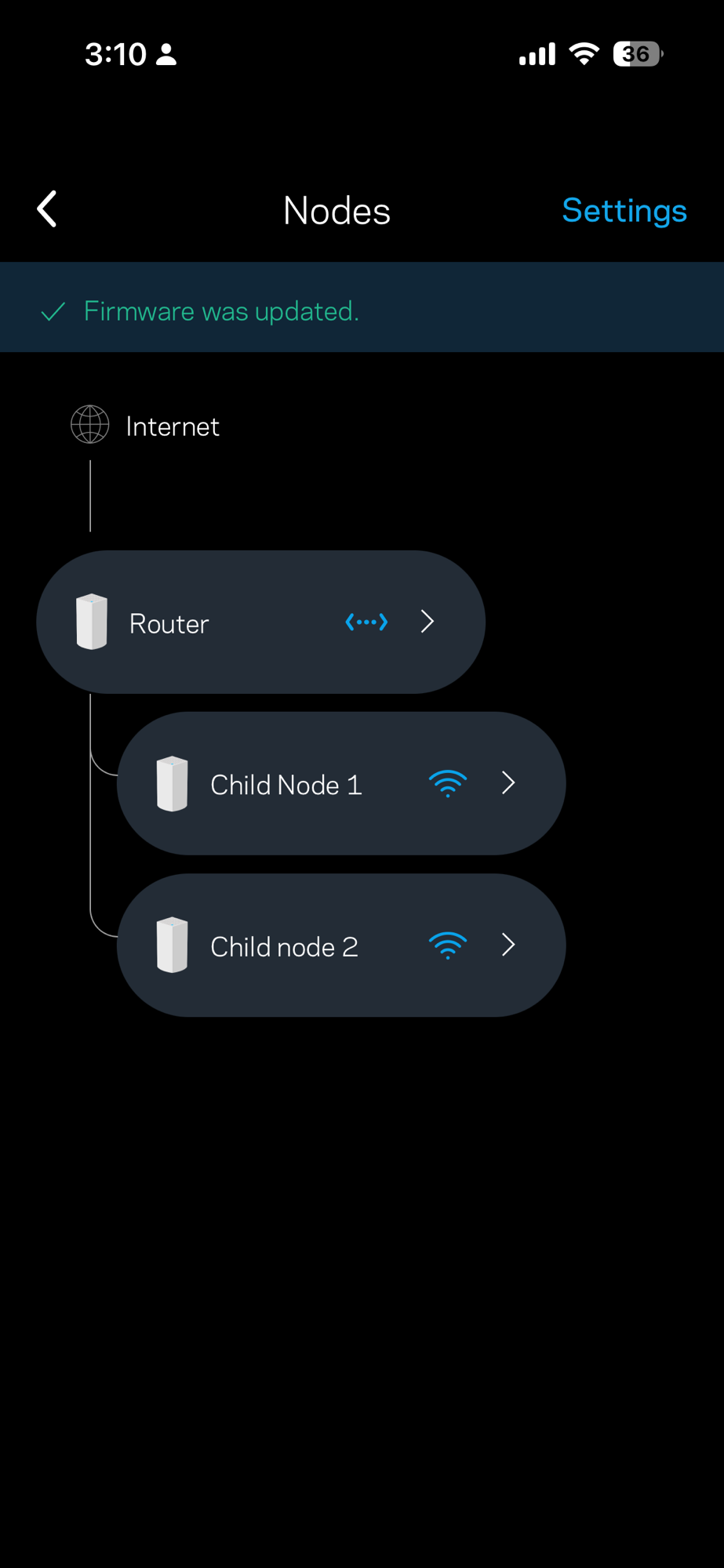

(Update 11-16-2025) Last few days I have encountered some intermittent issues on this Velop Wifi. And unplugging followed by plugging back in didn’t do the trick this time. So I did a reset, basically I factory reset every node to factory setting, and setup the Wifi network again. It seems now the WiFi is working as expected. A bonus point is this time I was able to add the 2nd child node successfully.
I also updated the firmware for one of the nodes. Now I feel like a network engineer 🙂
I also noticed that sometimes the LinkSys app will hang, and my workaround is to delete the app, and installed the app again. It seems did the trick. I did tried to close and re-open a few times. Sometimes that would work too. But “delete and re-install” did solve one hanging issue for me. I know it’s a bit extreme. Overall the app is not the best quality, let me add.
(Original 02-25-2025) I bought the system a while ago from Woot: it’s a refurbished product. Today I decided to set it up.
It’s done mostly via the Linksys app (iOS, android). I only have iOS so I can only comment on iOS: I think it’s good. It prompt me for the 1st node I just plugged in, and the node was also connected to the Internet (via the modem). Mainly I just tap and follow along.
The tricky part is add the 2nd node, my refurbished pack has 2 nodes total. Initially the app cannot find the child node (the 2nd node). Took me a while to realize I need to move this node closer to the parent node, and I did. After that I can see the 2nd node had the “Solid Purple” which means Node is ready for setup: and the rest is the history. Here are the explanations for the different colors.
After the successful pairing I can move the child node upstairs: and hopefully it can make the overall WiFi situation better at my home. Earlier I did try the “repeater mode” for my older Linksys WiFi router but it had some issues.
PS: I found out by default wordpress will use a very old timestamp for my post – it was year 2013 because I just reused it here. Then I updated it by just updating the timestamp.
PS (02-03-2025) I decided to get another Linksys VLP01 unit from eBay as I think it may improve the coverage when I work at front yard.